Installation instructions
I am releasing a pack of mods I personally use bundled into a Technic modpack.
The installation method I describe here is through the Technic launcher.
This method allows me to distribute a package of mods which updates automatically when I release a new version of the pack while keeping the settings you changed in the game.
You may use another launcher. The best method to install or update the pack will be specific to your launcher, and becomes your problem to solve.
Quick info:
- This is a Fabric server
- Server address:
frostbite.blueyed.eu
- Modpack url:
https://api.technicpack.net/modpack/blueyeds-frostbite
- Modpack page
- Modpack zip file
Step 1: Download and install Adoptium JRE:
Step 2: Download and install the launcher from the Technic website:
- Minimum required free disk space is 2GB
- Download TechnicLauncher.jar
- Put TechnicLauncher.jar somewhere memorable once the download is complete, as this will be the file you will use to open the launcher in the future
- Open the TechnicLauncher.jar file to install it.
(Change the installer language to english at the bottom left corner if you see garbled characters)
Step 3: Log in to your Minecraft account within the launcher.
- Follow the steps in the launcher
Step 4: Install the modpack
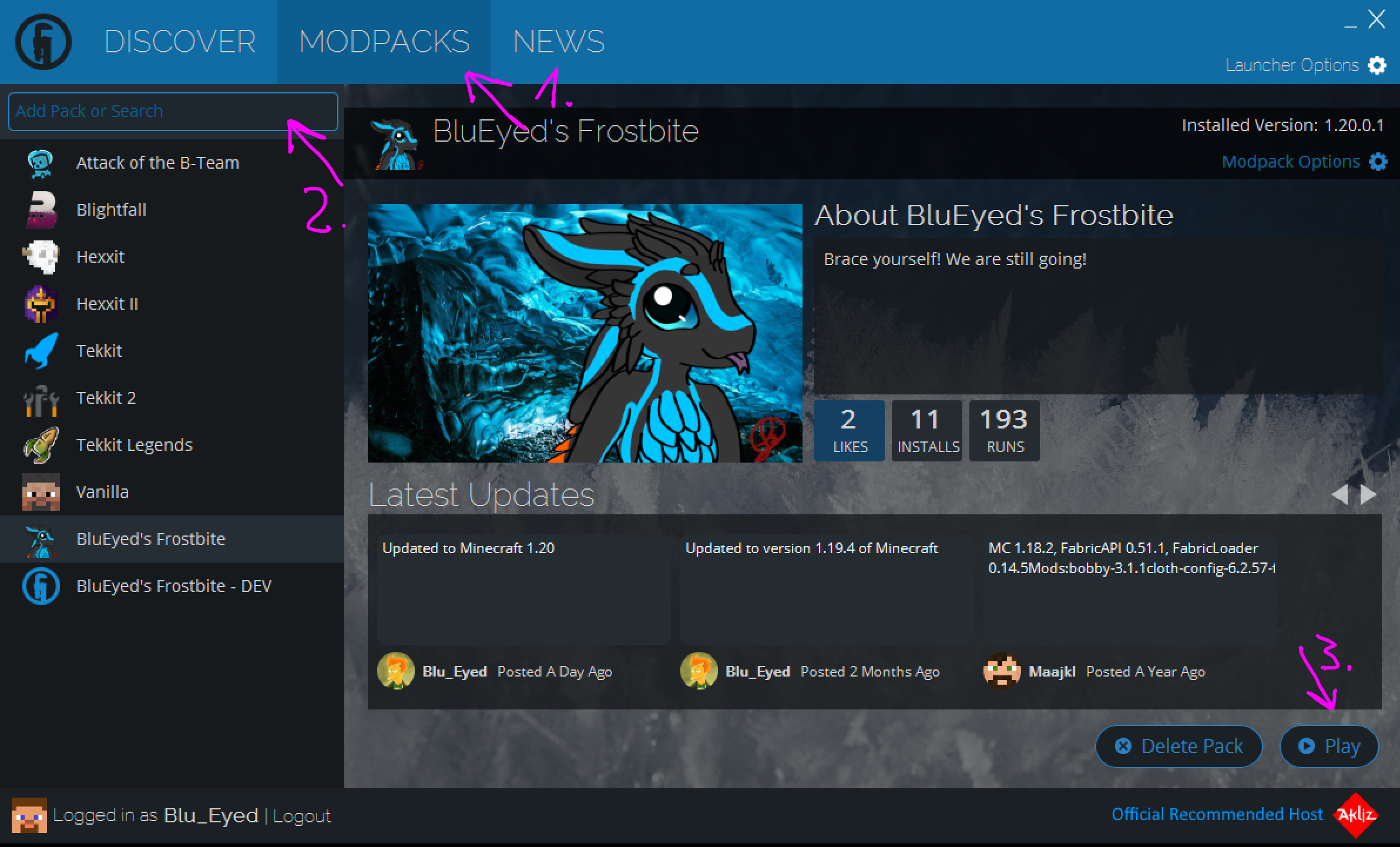
- Click the "Modpacks" button at the top.
- Paste
https://api.technicpack.net/modpack/blueyeds-frostbite into the search bar.
- And click the "Install" button in the bottom right corner.
Step 5: Adjust the default java settings
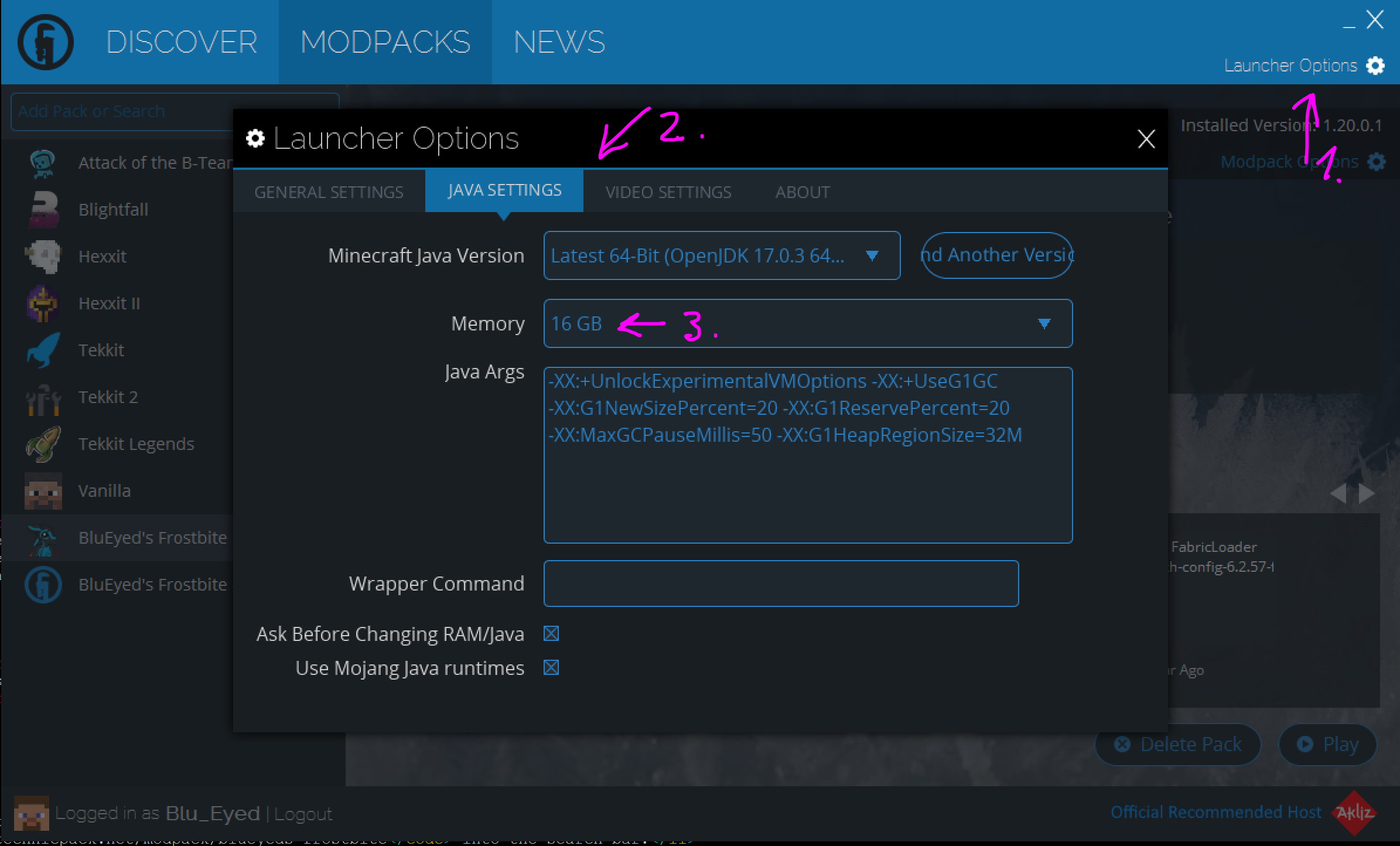
- Open the settings window by clicking the "Launcher Options" button in the top right corner
- Select the Java settings tab
- Set the memory appropriately for your system (Recommended memory allocation is at least 2GB)
- Exit the settings dialog by clicking "X" in the top right corner of the dialog
Step 6: Play
Add the server into your server list
server address is: https://frostbite.blueyed.eu